
// R in SAS Viya: PROC R, Standalone R and SWAT
SAS Viya combines the power of governed data, enterprise-grade security, and scalable processing with the flexibility of R and its extensive ecosystem of packages for specialized methods and visualizations.
While SAS and R have worked together for years, the integration has taken another step forward. With PROC R and the R code editor, R is now integrated directly into SAS Viya, much like Python. Together with R-SWAT, this gives you three different ways to bring R into your SAS Viya workflows. But how do these approaches differ? Which one should you choose, and how can you manage R packages effectively along the way?
In this article, we'll explore all three options, explain how they work, and help you decide which approach best fits your needs. And if you're also interested in working with Python in SAS Viya, check out our companion article: Python in SAS Viya.
In order to keep it clean, all the code shown in the images can be found on another page. Click HERE for the all the code corresponding to the examples.
- Three ways to work with R in SAS Viya
Which approach fits best depends on how you want to structure your workflow: with SAS in the lead, R taking the lead, or a combination of both. The overview below shows how the same simple task can be handled with each approach. The following sections take a closer look at how they work and when to use them. For all three options, managing R packages with renv in a project-specific environment is optional but recommended. It helps keep package versions consistent and makes your workflows easier to reproduce.
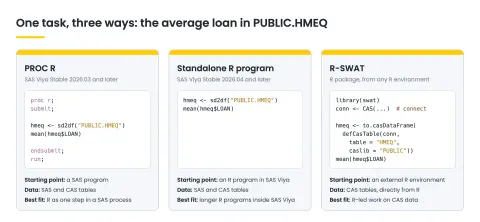
- PROC R: R as one step in a SAS program
Already have a SAS workflow in place but need a specific R package or method? PROC R lets you add R code without rebuilding your process elsewhere.
A minimal example:
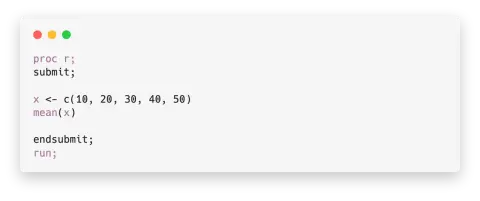
The R code runs as one step of the SAS program, making workflows like this possible:
-
Prepare the data in SAS.
-
Apply an R method or package.
-
Write the result back to SAS.
-
Carry on with the rest of the SAS process.
- Managing R environments with renv
Once R is part of a Viya workflow, package versions start to matter. An update can change results or cause existing code to behave differently, and renv helps prevent this by giving each project its own package library and recording exact versions in an renv.lock file. Using it is optional, but it pays off quickly, and the examples that follow use it.
The accompanying r_env.R file provides five functions:
-
create_r_env(): Creates the environment (run once).
-
load_env(): Activates it and restores packages from renv.lock.
-
install_and_lock(): Installs packages and updates the lockfile.
-
remove_env(): Deletes the environment.
-
r_env_status(): Shows the active environment, repository and library settings.
Source this file at the start of each PROC R block, followed by load_env(). This is especially important after proc r restart, which resets the R session.
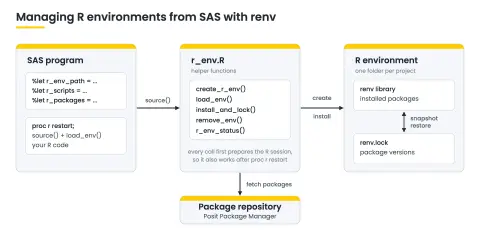
Packages are fetched from Posit Package Manager, which provides prebuilt packages for the server. On the SAS side, three macro variables define the environment folder, the location of r_env.R and the required packages. Creating the environment is a one-time step. The full r_env.R file is available on the accompanying code page.
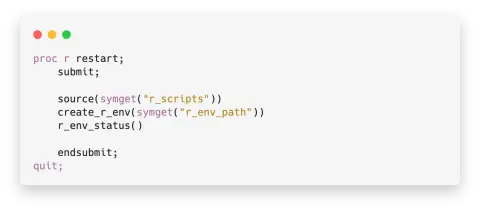
install_and_lock() then installs the missing packages and updates renv.lock. From that point on, every PROC R block starts with source() and load_env(), followed by the actual R code (show() is explained further on):
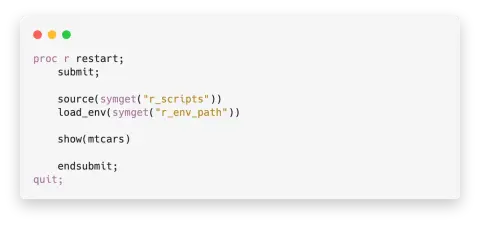
One common mistake is forgetting load_env(). Without it, packages may end up in the wrong library and appear to disappear later. Since load_env() restores packages from renv.lock, the lockfile also serves as a blueprint for rebuilding or copying an environment.
A note on setup: R availability, repository access, permissions and proxy settings depend on your SAS Viya environment. Need help getting everything running? Get in touch.
- PROC R in practice: SAS and R in one script
With the environment in place, SAS and R can exchange data directly. Two functions handle this:
-
sd2df() reads a SAS or CAS table into an R data frame.
-
df2sd() writes a data frame back as a SAS or CAS table.
Both functions rely on the haven package, which needs to be installed in the environment.
The example below reads SASHELP.CLASS, calculates average height and weight by sex in R, and writes the results to the WORK library.
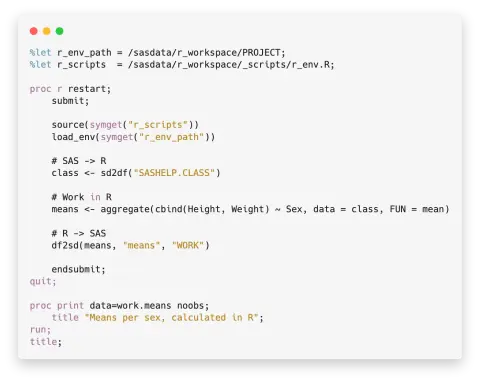
Once the data is back in SAS, you can continue with any SAS procedure.
- Standalone R: the same without the wrapper
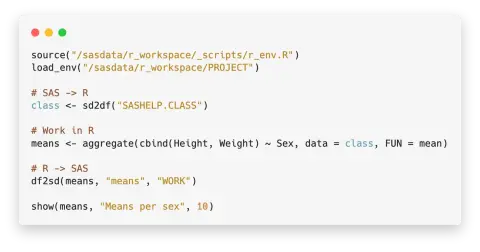
Not every R workflow needs a SAS wrapper. Since SAS Viya Stable 2026.04, SAS Studio (renamed SAS Data and AI Studio in 2026.06) includes an R code editor for writing, running and saving R programs directly. The same environment and data-exchange functions work here, including access to CAS. The main difference is that SAS macro variables aren't available outside PROC R, so paths need to be specified directly.
The example below performs the same calculation as before and introduces one additional function: show(dataframe, title, number_of_records) displays a data frame in the Results window. Unlike print(), which writes to the SAS log, show() makes results easier to find. It requires the arrow package, which must also be installed in the environment. Both show() and the data-exchange functions work in PROC R and standalone R programs.
- R-SWAT: Bringing SAS Viya into R
So far, we've looked at approaches where R runs inside SAS Viya. But what if you prefer to start in R and bring Viya's processing capabilities to your existing workflow? That's where SWAT (SAS Scripting Wrapper for Analytics Transfer) comes in. The swat package connects R to Cloud Analytic Services (CAS), allowing you to work in RStudio, Posit Workbench or another R environment while using Viya's processing capabilities. The package is installed from the SAS R-universe. To keep credentials out of your code, store them as environment variables in the .Renviron file. The accompanying code page covers both steps.
There are two ways to connect: using a username and password or an OAuth access token. Username and password authentication is the quickest option, but isn't supported by every Viya environment. An OAuth access token works in those cases and is the preferred method in production. An administrator can provide one.
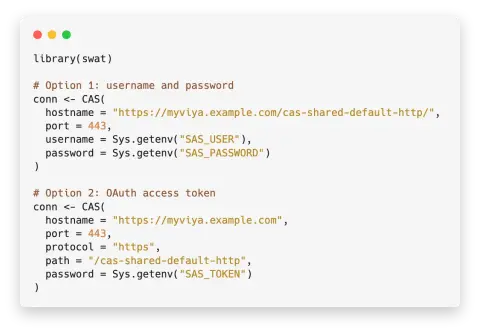
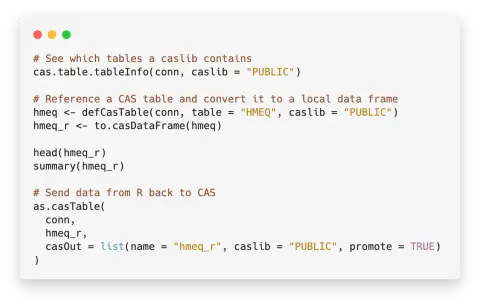
Once connected, you can list tables in a caslib, reference CAS tables and pull data into local R data frames when needed. You can also write results back to CAS. This means you can work with large datasets while keeping most of the data in Viya, avoiding unnecessary transfers to your local R environment.
- Final thoughts
SAS and R offer different strengths, and SAS Viya makes it possible to bring them together in several ways. Use PROC R when SAS leads the workflow, standalone R when you want to work directly in R within Viya, or R-SWAT when you prefer an external R environment connected to CAS. The best choice depends on your workflow and where you want your analysis to happen. All code examples from this article are available on the accompanying code page, ready to try.
For the same options in Python, see our article on Python in SAS Viya. Have questions or need help setting up R in SAS Viya? Get in touch. We're happy to help.
// Contact
Notilyze B.V.
Stationsplein 45 A4.004
3013 AK Rotterdam
+31 (0)10 79 86 295
info@notilyze.com

